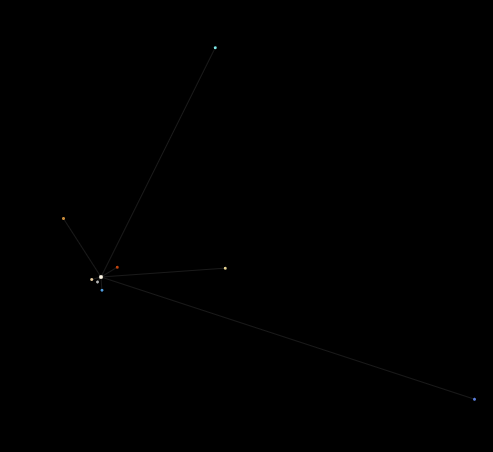
Adds a display of the astronomical bodies to a website. Data updates daily.
Credit is appreciated but not required
## Setup
Include the data library using
```html
```
Then download the planet.js file from the github repo and add it using remember to place it at the end of your body tag
```html
```
Add these divs on your website where you want
```html
```
I would also recommend having these styles applied
```css
#legend {
margin-top: 12px;
display: flex;
flex-wrap: wrap;
justify-content: center;
gap: 10px 18px;
max-width: 700px;
font-size: 10px;
letter-spacing: 1px;
}
.legend-item { display: flex; align-items: center; gap: 5px; }
.legend-dot { width: 5px; height: 5px; border-radius: 50%; }
```
## Line Colour
Depending on your themeing you will want to change the lines from either being white or black so they show up better
```js
ctx.strokeStyle = 'rgba(255,255,255,0.10)';
```
Changing this rgba value on line 86 of planet.js will change the colour of the lines between the sun and the planets
## Adding objects
To add more astronomical bodies find them in data.js lets use Pluto as an example finding it in the data.js the id for pluto is pluton (its in french)
```
"id": "pluton",
```
Then in planet.js we create a new planet id in the array and give it a name and colour
```js
const PLANET_IDS = ['mercure','venus', ... 'pluton'];
const PLANET_COLORS = {
mercure: '#b5b5b5',
venus: '#e8cda0',
...
pluton: '#5b7fde',
};
```